
Jump to section
- How Amazon Product Images Load on the Page
- Main Image, Gallery Thumbnails, and Script-Based Image Data
- JavaScript Rendering and Lazy Loading
- Rate Limits and Markup Changes
- Set Up a Python Workflow with Playwright and Scrapy
- Install Dependencies and Create the Project
- Configure Waits, Timeouts, and Output Fields
- When to Use Web Scraping HQ for Managed Delivery
- Extract Main, Gallery, and High-Resolution Image URLs
- Use Playwright to Capture Main and Gallery Images
- Parse Embedded Script Data to Find High-Resolution Links
- Product Page Extraction vs. Search Results Extraction
- Scale the Pipeline, Handle Blocks, and Keep Data Clean
- Control Concurrency, Retries, and Anti-Bot Risk
- Validate Image Data Before Storing or Downloading
- Conclusion: Build a Working Amazon Image Scraper Workflow
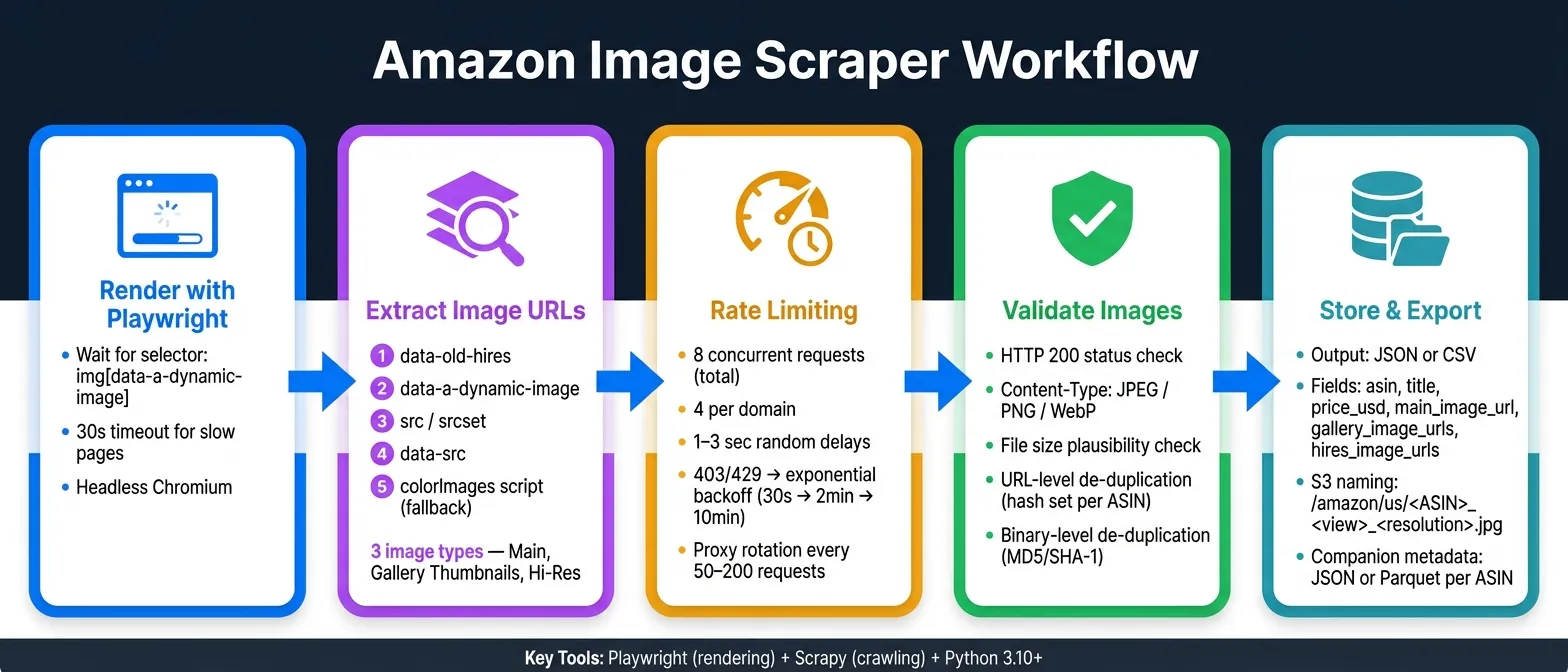
If I need Amazon product images at scale, I have to pull data from both the rendered page and embedded scripts. HTML alone often misses the best image links. The clean setup is simple: use Playwright to load the page, Scrapy to crawl at volume, then save image URLs with ASIN, title, and price.
Here’s the short version:
-
I pull three image types: main image, gallery thumbnails, and high-resolution image URLs
-
I read image fields in order:
data-old-hires→data-a-dynamic-image→src/srcset→data-src -
I use script data like
colorImageswhen the page view does not show every image -
I keep output in JSON or CSV with fields like:
-
asin -
title -
price_usd -
main_image_url -
gallery_image_urls -
hires_image_urls
-
-
I keep crawl pressure low with:
-
8 total concurrent requests
-
4 per domain
-
1 to 3 second random delays
-
-
I check image URLs before saving:
-
HTTP 200
-
image content type like JPEG, PNG, or WebP
-
file size checks
-
URL and binary de-duplication
-
A few things matter most:
-
Rendered DOM data tells me what the shopper sees now
-
Inline script data often gives me the largest files and more variant images
-
Selector-based waits work better than fixed sleeps
-
Tests and fallback selectors help when Amazon changes markup
In plain English: if I want a scraper that keeps working, I don’t rely on one selector or one image field. I combine browser rendering, HTML parsing, script parsing, slow request pacing, and image validation into one workflow.
That’s the core idea behind this guide.
How Amazon Product Images Load on the Page

On Amazon product pages, the main image, gallery thumbnails, and high-resolution image URLs often come from different parts of the page. So the smart move is to start with the raw markup, then check rendered attributes and embedded scripts.
Main Image, Gallery Thumbnails, and Script-Based Image Data
The main image usually shows up as an <img> element inside the primary image area, often with an ID like landingImage. The src attribute gives you the default image URL. But if you stop there, you may miss larger versions. In many cases, srcset, data-old-hires, and data-a-dynamic-image contain bigger or zoom-ready image URLs [2][7][12]. If srcset is present, parse it and keep the largest candidate.
Gallery thumbnails usually live under #altImages, where each thumbnail exposes a small preview URL through its src attribute [2][8]. Amazon image URLs also tend to follow a familiar CDN pattern, which means the size suffix can sometimes be adjusted to pull a larger version [11][13][5].
If you want the highest-resolution links, inline script data is often the best source. Amazon may store image arrays inside JavaScript objects like colorImages, with entries that include keys such as hiRes, large, and thumb. Pull the best image links from inline script data like colorImages by parsing those hiRes, large, and thumb fields [2][4].
Next, switch to a rendered browser session so you can read the values Amazon fills in after the page loads.
JavaScript Rendering and Lazy Loading
Use Playwright to wait for the image container and gallery elements before reading attributes. It also helps to wait until those values settle, instead of reading them the second the DOM appears [3][6][10].
Once the page settles, extract the attributes and parse the script data.
Rate Limits and Markup Changes
Amazon can change IDs, script structure, or the way data-a-dynamic-image behaves, so use flexible selectors and tests [2][3][4]. A scraper that holds up over time should look at more than one signal, including IDs, classes, and page structure. It should also be backed by automated tests that check whether main image URLs, gallery counts, and high-resolution links are still being picked up.
After extraction is stable, the next job is making the crawler hold up at scale. Image extraction tends to break sooner when request volume jumps or rendering slows down. Repeated requests from one IP, identical user agents, and perfectly even timing can all increase block risk. Keep concurrency low, add random delays, watch status codes and errors, and back off as soon as failures start to climb [9][10][11].
Set Up a Python Workflow with Playwright and Scrapy
Now that Amazon’s image loading pattern is clear, the next move is to build a workflow you can run again and again without fuss.
Install Dependencies and Create the Project
Use Python 3.10+ inside a virtual environment:
python -m venv .venv
source .venv/bin/activate  # Windows: .venv\Scripts\activate
pip install scrapy scrapy-playwright playwright
playwright install chromium
Then create the Scrapy project:
scrapy startproject amazon_images
cd amazon_images
That gives you the main project files: settings.py, items.py, spiders/, and a utils/image_parsing.py module for selector and script-parsing helpers.
The basic idea is simple: use Scrapy for page discovery, and bring in Playwright only for product pages that need JavaScript rendered. That keeps the crawl lean instead of sending a browser to every page.
To connect Playwright to Scrapy, update settings.py:
DOWNLOAD_HANDLERS = {
    "http": "scrapy_playwright.handler.ScrapyPlaywrightDownloadHandler",
    "https": "scrapy_playwright.handler.ScrapyPlaywrightDownloadHandler",
}
TWISTED_REACTOR = "twisted.internet.asyncioreactor.AsyncioSelectorReactor"
Configure Waits, Timeouts, and Output Fields
Run in headless mode in production. Switch to headed mode only when you need to debug what the browser is doing.
PLAYWRIGHT_BROWSER_TYPE = "chromium"
PLAYWRIGHT_LAUNCH_OPTIONS = {
    "headless": True,
    "args": ["--no-sandbox"],
}
For slower product pages, use a 30-second wait timeout. Then use PageMethod to wait for the image container before you read any attributes:
from scrapy_playwright.page import PageMethod

yield scrapy.Request(
    url,
    meta={
        "playwright": True,
        "playwright_page_methods": [
            PageMethod("wait_for_selector", "img[data-a-dynamic-image]", timeout=30000),
        ],
    },
)
Skip fixed sleep() calls. They’re blunt. If the page loads fast, you waste time. If it loads late, the sleep still may not be enough. Selector-based waits are a better fit because they wait for the thing you actually need.
It also helps to keep selectors in utils/image_parsing.py. When Amazon changes the page, you won’t have to dig through the whole spider to fix one selector.
For output, define the schema in items.py and export to JSON with FEEDS:
FEEDS = {
    "output/images.json": {
        "format": "json",
        "encoding": "utf8",
        "indent": 2,
    },
}
Use these fields for each image record:
| Field | Purpose |
|---|---|
asin | Primary product identifier for joining with catalog data |
image_url | The resolved URL for the image asset |
image_type | Distinguishes main, gallery, or high-resolution variants |
width / height | Filters low-quality assets and confirms full resolution |
With that setup in place, the next step is to pull the main image, gallery thumbnails, and high-resolution links.
When to Use Web Scraping HQ for Managed Delivery
Building this pipeline in-house gives you full control. But the upkeep can get old fast. Amazon changes layouts, selectors break, browser fleets need care, CAPTCHA issues show up, and QA checks take time.
A managed pipeline makes sense when this workflow is stable and recurring, and your team would rather spend time on analysis than on selector fixes. It can also help with image de-duplication and normalized JSON metadata, which keeps downstream catalog data cleaner.
Managed delivery cuts selector maintenance and CAPTCHA handling. Next, extract the image URLs from rendered product pages and map them into your output schema.
Extract Main, Gallery, and High-Resolution Image URLs
Now that the page-loading signals are clear, pull image URLs from the rendered DOM first. If you need bigger files or a more complete set, fall back to the data tucked inside script tags.
Use Playwright to Capture Main and Gallery Images
The hero image usually lives in the main image area, often under #landingImage or #main-image. Since Amazon tweaks its markup a lot, it helps to use broad selectors and several fallback fields. Read them in this order: data-old-hires, data-a-dynamic-image, src/srcset, then data-src. [14][9][17]
from playwright.sync_api import sync_playwright
import json

def get_main_image(product_url: str) -> dict:
    with sync_playwright() as p:
        browser = p.chromium.launch(headless=True)
        context = browser.new_context(
            user_agent="Mozilla/5.0 (Windows NT 10.0; Win64; x64)",
            viewport={"width": 1280, "height": 720}
        )
        page = context.new_page()
        page.goto(product_url, wait_until="networkidle")
        img = page.wait_for_selector("img#landingImage, #imgTagWrapperId img, #main-image", timeout=15000)

        hi_res = img.get_attribute("data-old-hires")
        dynamic_raw = img.get_attribute("data-a-dynamic-image")
        src = img.get_attribute("src")
        srcset = img.get_attribute("srcset")
        data_src = img.get_attribute("data-src")
        dynamic = json.loads(dynamic_raw) if dynamic_raw else {}

        context.close()
        browser.close()

        return {
            "hi_res": hi_res,
            "dynamic_image_map": dynamic,
            "src": src,
            "srcset": srcset,
            "data_src": data_src,
        }
That order matters. data-old-hires often gives you the best direct link right away. If that field is empty, data-a-dynamic-image can still tell you a lot because it holds a map of image URLs and dimensions.
For gallery thumbnails, many pages show a strip like #altImages li.item.imageThumbnail img. Click each thumbnail, wait for the main image URL to change, then save the new URL plus data-image-index so you keep the gallery in the same order users see it. [15][16]
thumbs = page.query_selector_all("#altImages li.item.imageThumbnail img")
gallery = []
prev_src = ""
for idx, thumb in enumerate(thumbs):
    thumb.click()
    page.wait_for_function(
        "(prev) => { const img = document.querySelector('#landingImage'); return img && img.src !== prev; }",
        arg=prev_src,
        timeout=10000
    )
    main = page.query_selector("#landingImage")
    current_src = main.get_attribute("src")
    hi_res = main.get_attribute("data-old-hires")
    gallery.append({
        "index": idx,
        "image_index": thumb.get_attribute("data-image-index"),
        "url": current_src,
        "hi_res": hi_res
    })
    prev_src = current_src
This click-and-wait pattern is much safer than scraping all thumbnails and hoping their image URLs map cleanly to the main gallery. Amazon often swaps the hero image dynamically, so it’s better to watch what the page actually does.
Parse Embedded Script Data to Find High-Resolution Links
Rendered attributes will get most of the visible images. Script data is usually where the best hires links live.
data-a-dynamic-image maps image URLs to [width, height] values, so keep the largest pair. For a fuller image set, scan inline <script> tags for colorImages or ImageBlockATF blocks. Those JSON blobs often include the full gallery for each color variant, plus labeled views such as "BACK" for ingredient panels or usage details. [9][15]
import json

def extract_script_images(page, asin: str) -> list:
    results = []
    for script in page.query_selector_all("script"):
        text = script.inner_text()
        if "colorImages" not in text:
            continue
        try:
            start = text.index('"colorImages"') + len('"colorImages"')
            start = text.index("{", start)
            depth = 0
            end = start
            for i, ch in enumerate(text[start:], start):
                if ch == "{":
                    depth += 1
                elif ch == "}":
                    depth -= 1
                    if depth == 0:
                        end = i + 1
                        break
            data = json.loads(text[start:end])
            for variant, images in data.items():
                for i, img in enumerate(images):
                    results.append({
                        "asin": asin,
                        "variant": variant,
                        "index": i,
                        "url_display": img.get("large"),
                        "url_hi_res": img.get("hiRes"),
                    })
        except (ValueError, json.JSONDecodeError):
            continue
    return results
A simple rule of thumb:
-
Use rendered DOM attributes for what’s on screen now
-
Use script data for the full gallery and bigger files
Amazon CDN URLs also tend to differ only by size suffixes like _SY445_ or _SL1500_. If a higher-resolution field is missing, you can often derive a larger image URL by swapping that suffix in code. [15][17]
Product Page Extraction vs. Search Results Extraction
Pick the page type based on how much image detail you need. Product detail pages are the better choice when you want full galleries, variant images, and hires URLs. Search results pages are better when speed matters more and thumbnail-level coverage is enough.
Scale the Pipeline, Handle Blocks, and Keep Data Clean
Control Concurrency, Retries, and Anti-Bot Risk
Once extraction is working, don’t floor the gas pedal. Start slow, then scale.
At larger volumes, request pacing matters just as much as extraction logic. A safe starting point in Scrapy is CONCURRENT_REQUESTS=8, CONCURRENT_REQUESTS_PER_DOMAIN=4, and a randomized download delay between 1 and 3 seconds. Increase those settings little by little while watching block rate closely. [1]
Random delays help avoid the kind of repeated request pattern that gets workers noticed. [1]
For retries, use tiers instead of treating every failure the same. Timeouts and 5xx errors can usually take 1–3 immediate retries. But 403s, 429s, and CAPTCHAs are a different story. In those cases, switch to exponential backoff: 30 seconds, then 2 minutes, then 10 minutes. If block signals jump, pause the worker, rotate the proxy or session, log the incident, and restart at lower concurrency. Scrapy’s built-in RetryMiddleware is a good fit for status-code-specific retry rules, and Playwright scripts can wrap navigation in try/except blocks to trigger that same controlled backoff. [1]
Proxy handling also needs a bit of discipline. Keep each worker on the same IP for about 50 to 200 requests, then rotate when failure signals appear instead of rotating on a fixed timer. Track proxy success rate and latency, retire weak IPs, and keep browser and locale settings aligned. [1]
Validate Image Data Before Storing or Downloading
Before you save anything, make sure the URL points to an actual image.
Check for a successful HTTP status, a Content-Type like image/jpeg, image/png, or image/webp, and a plausible Content-Length. If the payload is tiny, flag it as a placeholder or a broken asset. [1]
De-duplication should happen at two levels:
-
Normalize URLs by removing tracking parameters and standardizing schemes, then keep a hash set of seen URLs per ASIN.
-
Hash the binary image data itself with something fast like MD5 or SHA-1 so you can catch the same image served from different CDN paths. [1]
For hi-res coverage, track whether each ASIN has at least one hiRes field populated. Then use a per-ASIN coverage score to flag products that need another pass before moving downstream. [1]
An ASIN-first naming structure keeps the dataset tidy. For example: s3://bucket/amazon/us/<ASIN>/<ASIN>_<variant>_<view>_<resolution>.jpg. Alongside that, store a companion JSON or Parquet metadata record per ASIN with all URLs, variant/view/resolution mappings, extraction timestamps, and quality flags. [1]
Conclusion: Build a Working Amazon Image Scraper Workflow
With pacing, retries, and validation in place, the pipeline is ready for production. The workflow is straightforward: render the page with Playwright, read DOM attributes in priority order, fall back to colorImages script data for full galleries and variant coverage, then validate and store outputs with ASIN-based naming.
Want this done for you?
Send us the URLs. We'll quote it in 24 hours.
Paste the URL(s) you want scraped. We'll reply within 24 hours with a feasibility check and a ballpark quote.