Jump to section
- Table of Contents
- Why Clone a Website and What That Actually Means
- Cloning Static Sites with HTTrack and wget
- HTTrack works best as a project, not a one-off download
- wget is the leaner command-line mirror
- What these tools won’t do
- Capturing Dynamic and JavaScript-Rendered Sites
- Headless browsers give you the rendered page
- Use headless only when the architecture demands it
- Cloning a WordPress or CMS Site the Right Way
- The file copy and database pair
- When plugins are enough and when they aren’t
- Handling Assets, Links, and the Breakage Nobody Warns You About
- The first pass is path hygiene
- Real content stress tests expose the weak points
- Legal and Ethical Boundaries You Cannot Ignore
- Layout research is not the same as republishing
- Authentication changes the game
- When to Outsource Cloning to a Managed Data Service
- Three signals tell you when to stop hand-rolling it
- A simple decision rubric
You’re usually not trying to “clone a website” for the fun of it. You need a staging copy before a risky release, a migration path off an old host, a local archive before a redesign, or a fast way to inspect a competitor’s layout without touching production. The mistake most people make is treating cloning like one tool or one command, when it’s really a pipeline that depends on what the site is made of and what you need to preserve.
If the site is mostly static, a mirror can be enough. If it’s backed by a CMS, databases, or client-side rendering, a file copy only gets you the surface, not the working system. That distinction matters because the wrong method produces a clone that looks right in one browser tab and falls apart the moment you click, log in, or load real content.
Table of Contents
Open Table of Contents
- Why Clone a Website and What That Actually Means
- Cloning Static Sites with HTTrack and wget
- Capturing Dynamic and JavaScript-Rendered Sites
- Cloning a WordPress or CMS Site the Right Way
- Handling Assets, Links, and the Breakage Nobody Warns You About
- Legal and Ethical Boundaries You Cannot Ignore
- When to Outsource Cloning to a Managed Data Service
Why Clone a Website and What That Actually Means
The most common reason someone clones a site is practical, not theoretical. A team is moving to a new host, rebuilding a staging environment, preserving a snapshot for QA, or reviewing a competitor’s layout before a design refresh. In those situations, “clone” can mean anything from copying visible HTML and assets to restoring an entire application with data, configuration, and user flows intact.
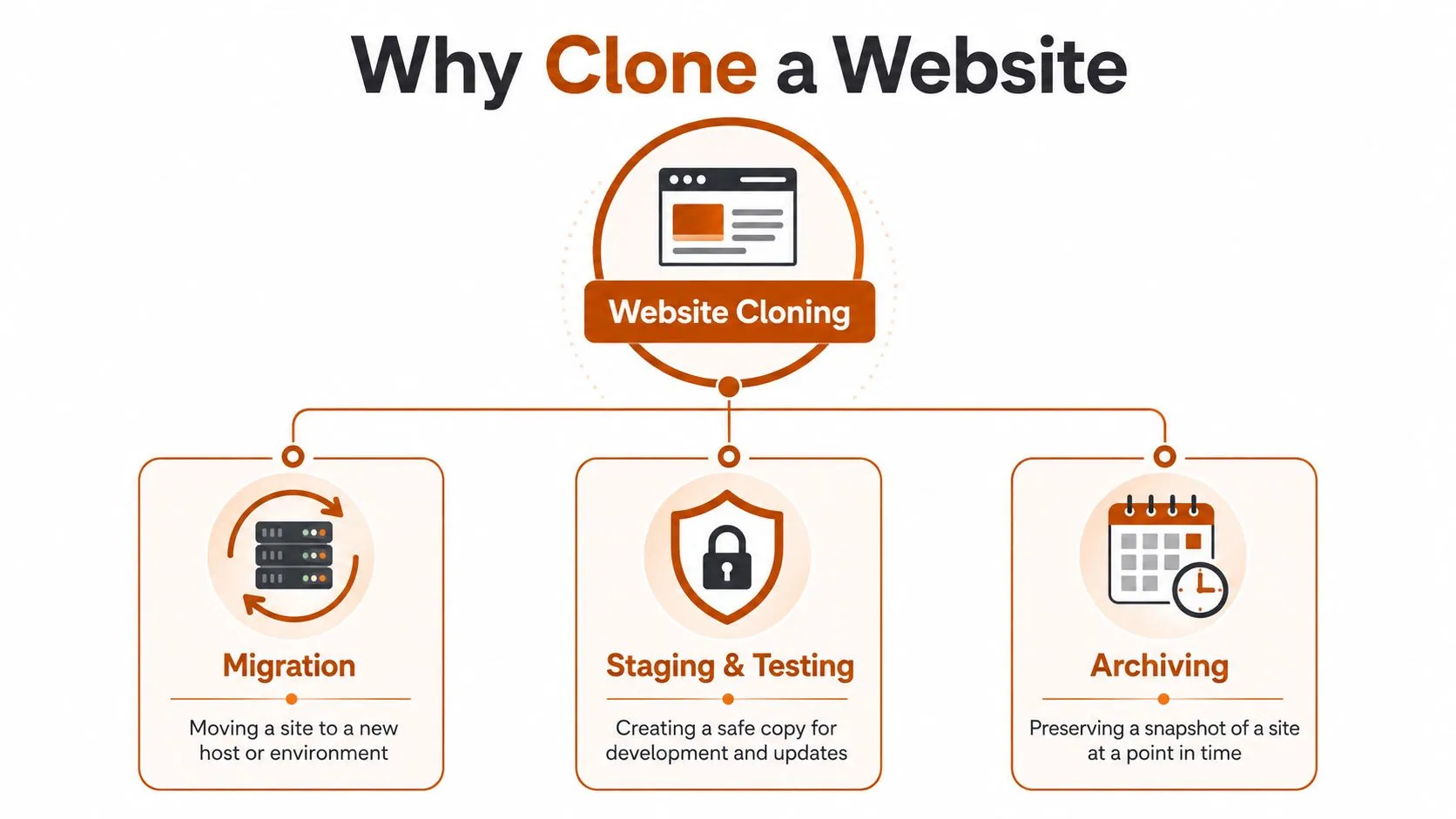
The old model was straightforward. HTTrack, first released in 1998, became the classic open-source mirroring tool because it could download a website from the Internet to a local directory and preserve link structure for offline browsing. That workflow still makes sense for static or lightly dynamic sites, because it copies files rather than rebuilding server-side logic or authenticated workflows. The historical lesson still holds, fetch HTML, assets, and links, then reconstruct or inspect the site locally.
Practical rule: if the site’s value lives in files, mirroring can get you far. If the value lives in the database, APIs, or session state, mirroring only gives you the shell.
A useful way to think about the job is in layers. The first layer is the visible interface, the HTML, CSS, images, and scripts that a browser can load. The second is the data layer, content entries, media libraries, user records, and app state. The third is the runtime layer, server logic, authentication, and dynamic behavior that doesn’t exist as files on disk.
That’s why a clone can be useful for archival, QA, competitive intelligence, and visual review, while still failing to recreate backend databases, APIs, or user-specific states. If you only need to inspect how a page looked, one approach is enough. If you need the site to function like the original, you’re in migration territory, not simple mirroring.
For a broader framing of how site copying relates to extraction and reconstruction work, the internal overview on what web scraping is is a useful companion. It helps separate data collection from full site replication, which is where a lot of bad assumptions start.
Cloning Static Sites with HTTrack and wget
Static sites are still the easiest place to start because the tools match the architecture. Blogs, documentation portals, older marketing sites, and many legacy templates can be mirrored cleanly with either HTTrack or wget, as long as you accept that you’re copying what the browser can fetch, not rebuilding the application behind it. When the site is mostly files, recursive mirroring gets you a usable offline copy quickly.
HTTrack works best as a project, not a one-off download
HTTrack is built around a project workflow. You define the target, choose where the local copy should live, and let it crawl through pages and linked resources. Its value is not just that it downloads pages, it also preserves internal links so the site can be browsed offline in a way that feels coherent.
A typical approach is to point HTTrack at the root domain, allow it to follow linked pages, and keep the mirrored directory separate from the source. That separation matters because it lets you inspect the result without mixing local files into your working environment. For a static site, that often gives you enough fidelity to compare layouts, archive content, or validate a migration target.
wget is the leaner command-line mirror
wget is often the faster fit when you want a scriptable mirror. The recursive flags are the important part, along with page requisites so it fetches images, CSS, and scripts needed for local browsing. A practical pattern is to target the site root, enable recursion, preserve directory structure, and convert links so the mirrored pages work offline.
A real-world command usually looks conceptually like this, though the exact flags depend on what you need:
- Recursive fetch: crawl linked pages beyond the first HTML response.
- Page requisites: pull CSS, images, and other assets the page needs.
- Link conversion: rewrite links so the local copy points to local files.
- Directory preservation: keep paths close to the original site structure.
The goal is not to download the internet, it’s to capture the subset of files that make the page render correctly offline.
What these tools won’t do
HTTrack and wget do not reconstruct app logic. They won’t recreate logged-in dashboards, server-side personalization, or content that only appears after JavaScript runs. That’s why they work well for static or lightly dynamic sites and fail fast on modern single-page apps. If you run them on a React site that renders most content client-side, you may get HTML that’s nearly empty.
The practical test is simple, if the important content is already present in the server response, these tools are a good fit. If the browser has to execute code before the page becomes useful, you need a rendered capture instead.
For a concise walkthrough of this style of static cloning, the guide on how to clone a website with browser tools and recursive downloaders matches the workflow used in practice.
Capturing Dynamic and JavaScript-Rendered Sites
A browser request to a JavaScript-heavy site often returns a shell, not the finished page. That’s normal for apps built with React, Vue, or Angular, where the HTML response is just the starting point and the content appears after scripts run. In that environment, cloning means capturing the rendered DOM, the assets the browser fetched, and sometimes the interactions needed to make lazy content appear.
Headless browsers give you the rendered page
Puppeteer and Playwright are the usual tools here because they control a real browser engine. You load the page, wait for the network to settle, scroll to trigger deferred content, then save the rendered output. That makes them heavier than wget, but they’re often the only practical option when the important markup is generated client-side.
A minimal Node.js pattern looks like this:
import { chromium } from 'playwright';

const browser = await chromium.launch({ headless: true });
const page = await browser.newPage();

await page.goto('https://example.com', { waitUntil: 'networkidle' });
await page.evaluate(() => window.scrollTo(0, document.body.scrollHeight));
await page.waitForTimeout(2000);

const html = await page.content();
console.log(html);

await browser.close();
That code gives you the rendered DOM, not just the initial response. From there, you can pair the HTML with captured assets from the browser session and reconstruct a local snapshot.
For a more detailed run-through of this pattern, the internal guide on extracting data from JavaScript pages with Puppeteer aligns with the same capture model.
Use headless only when the architecture demands it
Headless browser cloning is expensive in the operational sense. It takes more setup, more memory, more patience, and more retries than a recursive downloader. It’s also easier to get blocked because the browser signature is more visible and the workflow usually looks more like automation than simple fetch traffic.
That trade-off is worth it when the page is built around client-side rendering, infinite scroll, lazy-loaded media, or gated interactions that only appear after scripts run. It’s overkill for a static blog. It’s the right tool when a plain HTTP fetch misses the product listings, article body, or navigation that users see.
Rule of thumb: if DevTools shows most of the page content arriving after network activity, use a browser. If the content is already in the HTML, start simpler.
The goal is still the same, capture what a user sees. The difference is that dynamic sites force you to capture the browser’s work, not just the server’s output.
Cloning a WordPress or CMS Site the Right Way
Most real-world cloning jobs aren’t about raw HTML at all. They’re about WordPress, HubSpot, or another CMS where the visible site is just the front end for a file system and a database. In that world, wget gives you a partial artifact, but the complete clone comes from copying the webroot and restoring the database together. That’s the shape of the problem, whether you do it manually or with tooling.
The file copy and database pair
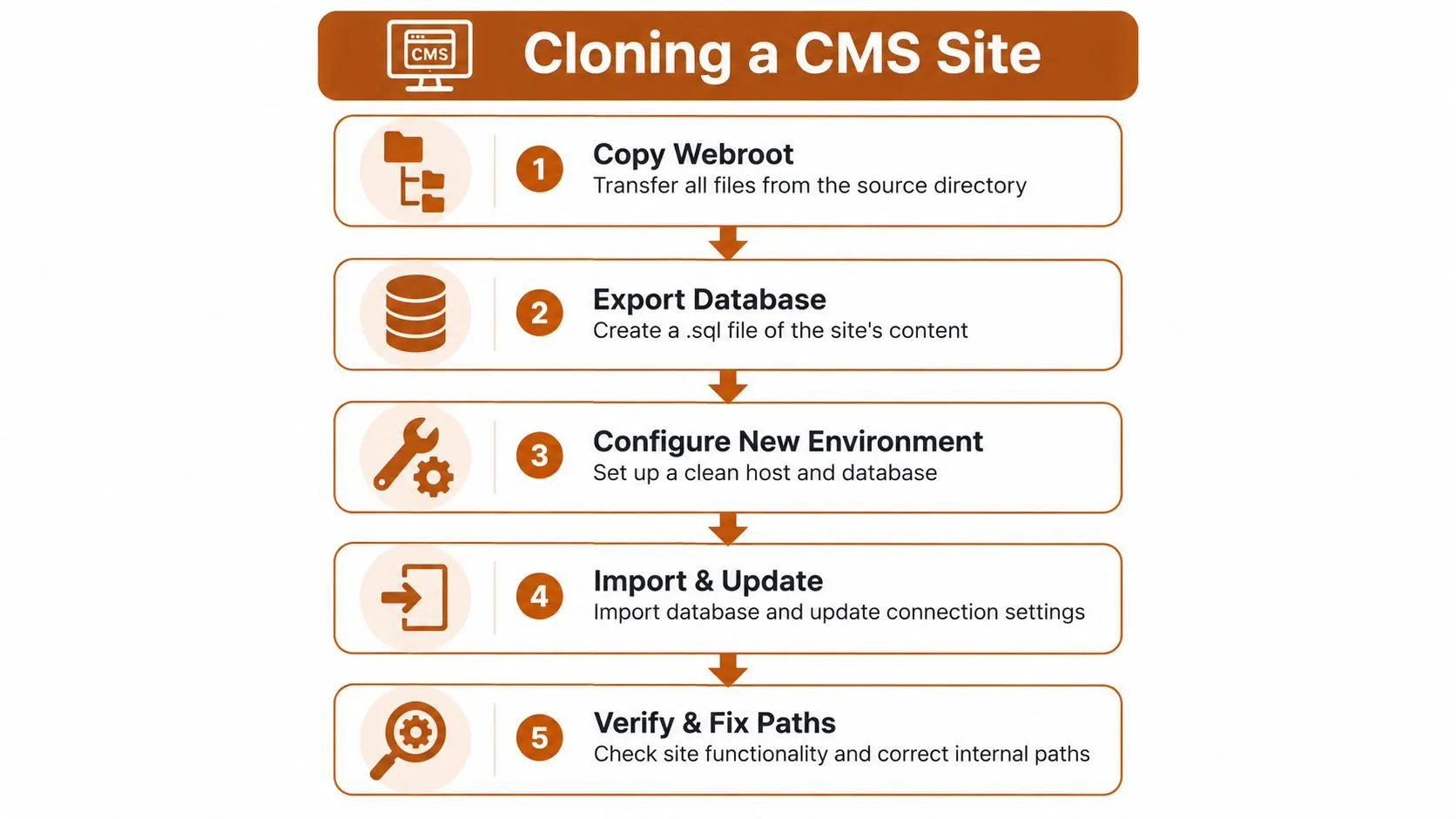
The basic manual pattern is simple. Copy the site’s files, export the database as SQL, then restore both pieces in the new environment. In WordPress, that usually means preserving wp-content for themes and media, then importing the database so posts, settings, and plugin data come back with it. If you skip the database, you’ll have a shell with no content. If you skip the files, you’ll have content with missing themes, images, or custom code.
That’s why CMS cloning is really a migration problem dressed up as a download problem. The hosting environment, database connection, and CMS configuration all matter as much as the front-end files. This is also why web scraping versus API access matters conceptually, because some systems expose the data directly while others require you to reconstruct it from the rendered site and stored content.
When plugins are enough and when they aren’t
One-click tools such as All-in-One WP Migration and Duplicator are useful when the site is reasonably standard and the move is straightforward. They reduce the chance that someone forgets a database table, a media folder, or a serialized setting. For smaller or conventional installs, that’s often enough.
Manual export is safer when the site has a larger database, multisite complexity, or custom post types that need careful handling. In those cases, a plugin can still help, but I wouldn’t trust it blindly without checking what moved. The output has to be tested against the source, not assumed correct because a plugin said the transfer finished.
A clean staging checklist usually looks like this:
- Copy the webroot: preserve themes, plugins, uploads, and custom code.
- Export the SQL dump: make sure content and settings are included.
- Restore into a clean environment: don’t contaminate the clone with old config.
- Update connection settings: point the application at the new database and host.
- Verify links and media: check that paths resolve in the new environment.
If you’re maintaining a live WordPress site, a backup habit is part of the cloning habit. WP Triage has a practical piece on backup scheduling and offsite storage that fits naturally with any clone or restore workflow, because a clone is only useful if you can also recover from the next mistake.
Handling Assets, Links, and the Breakage Nobody Warns You About
A cloned page can look convincing and still be fragile. I’ve seen mirrors that matched the source visually but broke as soon as someone resized the browser, opened a different article, or loaded a page with longer copy. The failure isn’t the mirror itself, it’s the assumption that visual fidelity means functional integrity.
The first pass is path hygiene
The easiest thing to miss is link rewriting. A page that points to absolute URLs can still work locally if the network is available, but it stops behaving like a self-contained clone. Relative paths are safer for offline browsing and local review, especially when the goal is to move the site into a new environment.
Asset loading needs the same attention. CSS, JavaScript, fonts, and images often sit on different paths or subdomains, and one missing reference can break the layout without being obvious at first glance. A page with missing scripts may still render, but interactive components and navigation can fail in subtle ways.
If the clone only looks correct on the landing page, it’s not done.
Real content stress tests expose the weak points
A good clone needs hostile inputs, not just happy-path review. Try headlines that are longer than the original, images with different aspect ratios, and content blocks that don’t fit the original spacing assumptions. Those tests reveal whether the layout is resilient or merely copied.
Responsive normalization matters here too. Fixed widths that looked fine on the source site often need to become flexible containers in the clone. Repeated UI patterns should be extracted into reusable components so the clone doesn’t depend on one perfect page snapshot. That advice comes up often in practitioner workflows because the cloned output usually breaks where the original design made assumptions about content length, viewport size, or asset shape.
The practical verification checklist is straightforward:
- Rewrite absolute URLs: convert hardcoded links so the clone can live locally or on a new domain.
- Test all assets: verify images, CSS, and JavaScript load without missing references.
- Check forms and dynamic features: confirm interactive elements still behave as expected.
- Update internal links: catch old paths that point back to the source environment.
- Scan for mixed content: make sure HTTPS pages aren’t pulling insecure HTTP assets.
The internal guide on how to scrape links from websites is relevant here because link extraction and link normalization are inseparable once you start making a clone portable.
The point is not to make the clone identical in a screenshot. It’s to make it survive real use. That means content stress cases, responsive checks, and a deliberate pass over every path that could break once the local copy stops borrowing help from the live site.
Legal and Ethical Boundaries You Cannot Ignore
Cloning your own site or a site you have explicit permission to copy is routine. Cloning a competitor so you can republish their text, reuse their design, or bypass access controls is a different matter entirely. The difference isn’t cosmetic, it’s legal, ethical, and operational.
A solid starting point is the web scraping legality guide, which is useful for thinking through permission, purpose, and boundaries before you automate anything. That matters because a clone that violates rights or site terms can create more risk than value.
Layout research is not the same as republishing
Studying a public site’s layout, navigation patterns, or component structure is usually a design exercise. Republishing copied text, imagery, or branded assets is where infringement risk sharpens quickly. In practice, the safest path is to use a cloned site as reference material, then rebuild with your own content and your own assets.
robots.txt and terms of service are also part of the picture, even when they’re not the whole picture. They tell you something about what the site owner wants, and ignoring them can get a project blocked before it starts. If a site uses CAPTCHAs, rate limits, or fingerprinting, that’s a signal that the owner doesn’t want automated copying to be easy.
Authentication changes the game
Once you need to bypass login walls or scrape user-specific content, the work stops looking like harmless mirroring. Authenticated areas often contain private data, and a clone can expose more than you intended if you’re not careful with storage and access controls. For that reason, cloning behind authentication should stay inside systems you own or operate, or inside an authorization scope that’s been made explicit.
The internal article on five legal risks in web scraping and how to mitigate them is worth reading before any project that touches third-party content, because the risk isn’t only legal exposure. It’s also reputational damage, blocked infrastructure, and wasted engineering time.
A defensible rule is simple. Clone for migration, archiving, testing, or internal analysis when you have the right to do it. Rebuild from inspiration when you don’t. If the project’s success depends on copying someone else’s protected content or sidestepping their access controls, stop there.
When to Outsource Cloning to a Managed Data Service
DIY cloning works when the site is stable, the task is one-off, and the team can afford to maintain the script or workflow. It stops being attractive when the source changes constantly, requires authenticated access, or uses anti-bot defenses that turn every rerun into a maintenance job. At that point, the actual cost is no longer the first clone, it’s the time spent keeping the clone current.
Three signals tell you when to stop hand-rolling it
The first signal is site complexity. Static pages and standard CMS installs are manageable with familiar tools, but heavily scripted interfaces, gated content, and multi-step flows increase the odds that a hand-built clone will drift from reality. The second signal is update frequency. If the source changes often, a one-time mirror quickly becomes stale.
The third signal is engineering time. A senior developer can usually produce a prototype clone. The hidden cost is ongoing maintenance, retries, selector drift, path updates, and failed runs when the site changes. That is why recurring needs, especially competitive monitoring, ad verification, and data pipelines, often justify a managed approach instead of another fragile internal script.
A managed service can absorb the operational work that DIY teams usually end up owning, monitoring, retries, proxy management, anti-bot mitigation, and re-tuning when source sites change. WebscrapingHQ is one option in that category, with managed web data operations, custom scraper development, and ongoing delivery workflows built around structured outputs and scheduled runs.
A simple decision rubric
If the answer is “yes” to most of these, outsourcing starts to make sense:
- Frequent source changes: the site changes too often for a one-time clone.
- Authentication required: the content sits behind login or session handling.
- Anti-bot protections: requests are blocked, challenged, or rate-limited.
- Recurring delivery: the clone needs to refresh on a schedule.
- Downstream dependence: another team needs clean CSV, JSON, webhook, or report output, not just files on disk.
The internal guide on web scraping versus API access also helps here because some projects should not be solved by cloning at all. If a site exposes an API, use the API. If it doesn’t, and your need is recurring or operationally sensitive, a managed data pipeline is often the better fit.
What matters is fit, not ideology. DIY is excellent for a contained migration or archive. Managed operations make more sense when the cloning problem becomes a standing business process.
If you need a clone for migration, QA, archiving, or recurring data capture, WebscrapingHQ can scope the source, build the extraction workflow, and run it on a schedule with the operational pieces handled for you. Visit WebscrapingHQ if you want a practical path from a brittle one-off clone to a maintained data workflow.
Want this done for you?
Send us the URLs. We'll quote it in 24 hours.
Paste the URL(s) you want scraped. We'll reply within 24 hours with a feasibility check and a ballpark quote.